- Service operation parameters (Intervals)
- File-based data exchange with ERP systems (Modes)
- File exchange
- “FTP” mode
- Storage check, saving, and restart
Service operation parameters (Intervals)
- Import interval — How often the service checks for incoming files in the
Importfolders. These are incoming data files exported by ERP systems, such as 1C, for import into the service and database. - Number of import threads — The number of threads that can be used for import. If there are many sections or databases, single-threaded import may be slow. Increase this value based on the performance of the server and database.
- Export interval — How often the service generates outgoing files in the
Exportfolders for transfer to ERP systems, such as 1C. - Mobile client timeout — Connection timeout specifically for mobile clients. This parameter does not apply to file import or export with ERP systems.
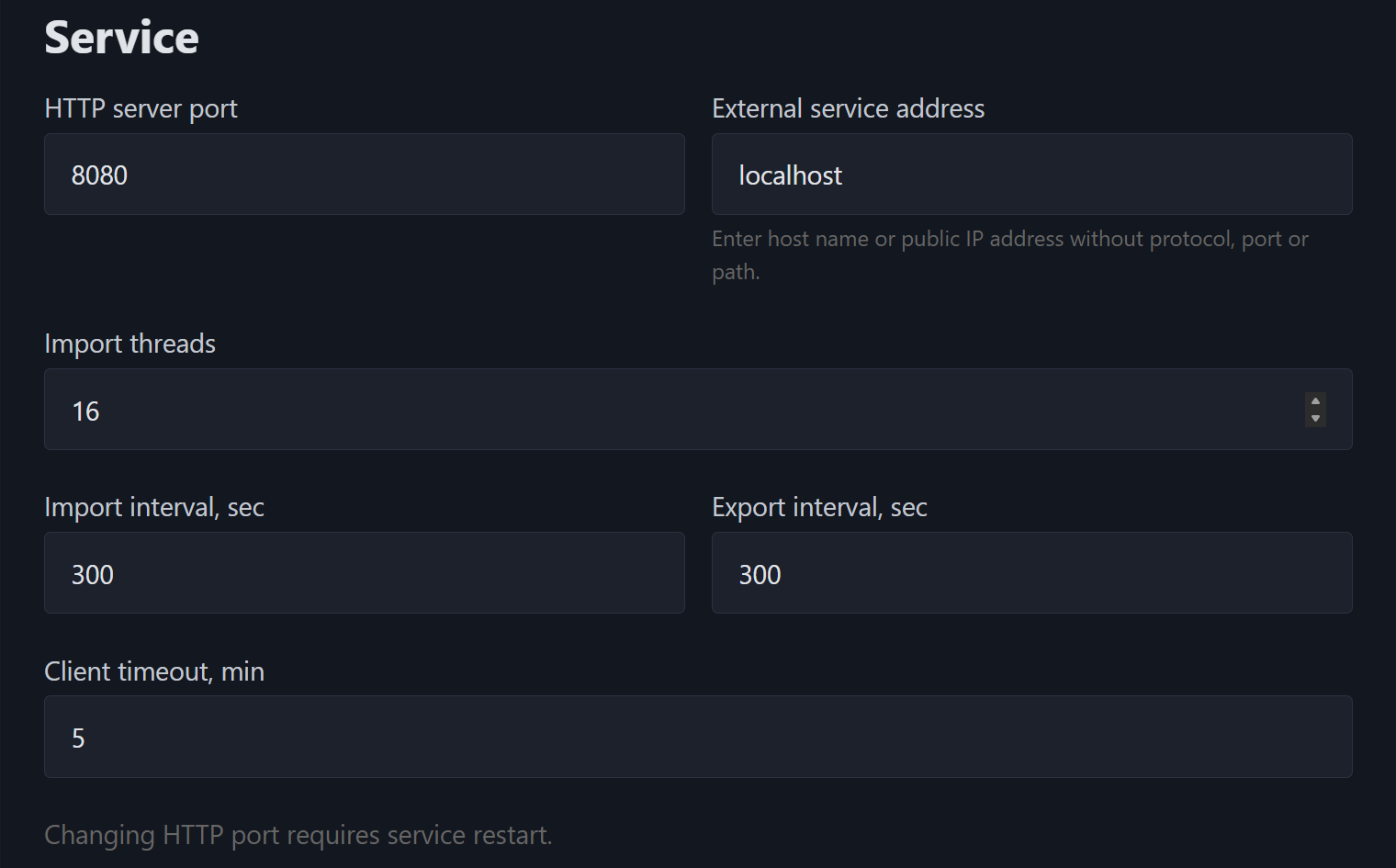
Recommendation: Intervals are specified in seconds. Setting intervals too low may increase the load on the server, database, and file storage.
File-based data exchange with ERP systems (Modes)
The file exchange settings define where the service creates exchange folders for ERP systems, such as 1C. The mode is selected in the Exchange mode field: “Local folder” or “FTP”.
The selected mode determines how section folders are created:
- Local folder:
<local root folder>\<section folder>\ImportandExport. - FTP:
<section folder>/ImportandExport.
File exchange
Use this mode if the exchange folders should be located on the server’s local drive or in a network folder accessible to the service.
The Local exchange root folder field defines the full path to the common root folder where the service will create section folders. The service creates only folders for specific sections and the service subfolders Import and Export.
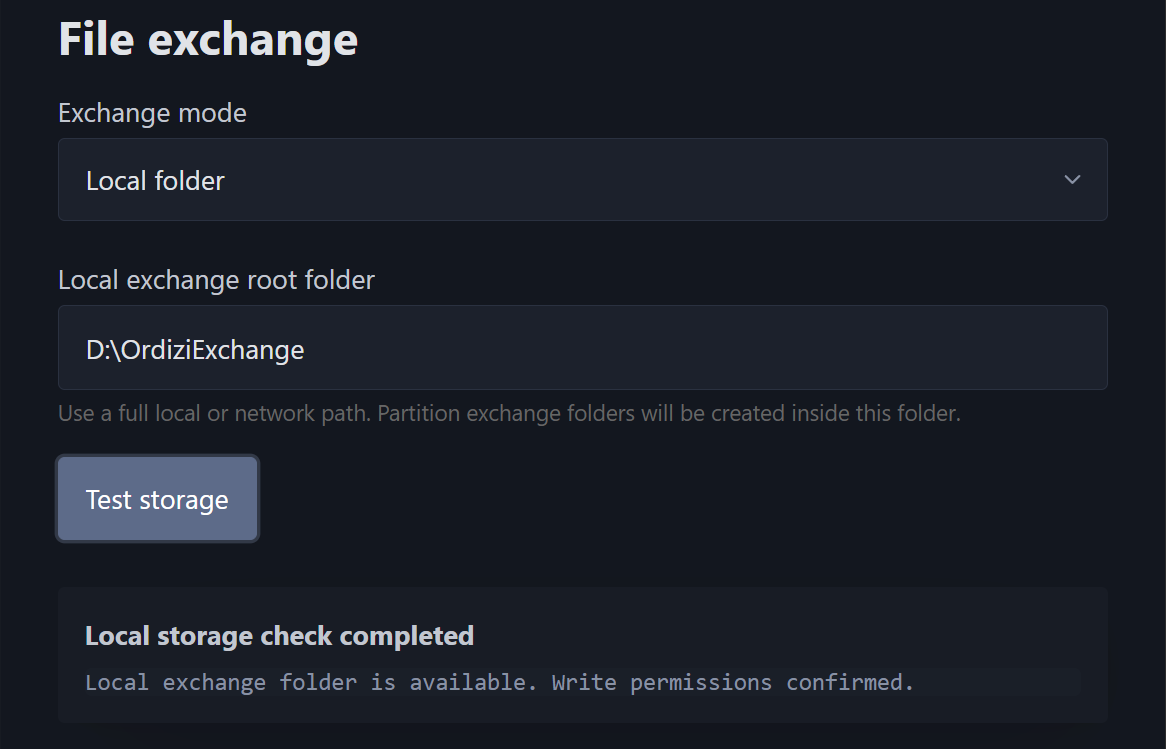
Examples for Windows:
D:\OrdiziExchange
\\SERVER\Share\OrdiziExchange
Examples for Linux:
/var/lib/ordizi/exchange
/mnt/exchange/ordizi
Access permissions: The local exchange root folder must already exist. The service does not create it automatically. The service account must have permission to read, write, create folders, and create files within this folder.
“FTP” mode
Use this mode if the exchange folders should be located on an FTP server.
- FTP server and FTP port — FTP server address (for example,
ftp.company.localor192.168.1.50) and port (usually 21). - FTP user and FTP password — FTP user credentials. (The previously saved password is not displayed in the interface; the existing password is retained if the field is left empty).
- Use SSL for FTP — Enable this option if the FTP server uses a secure FTPS connection.
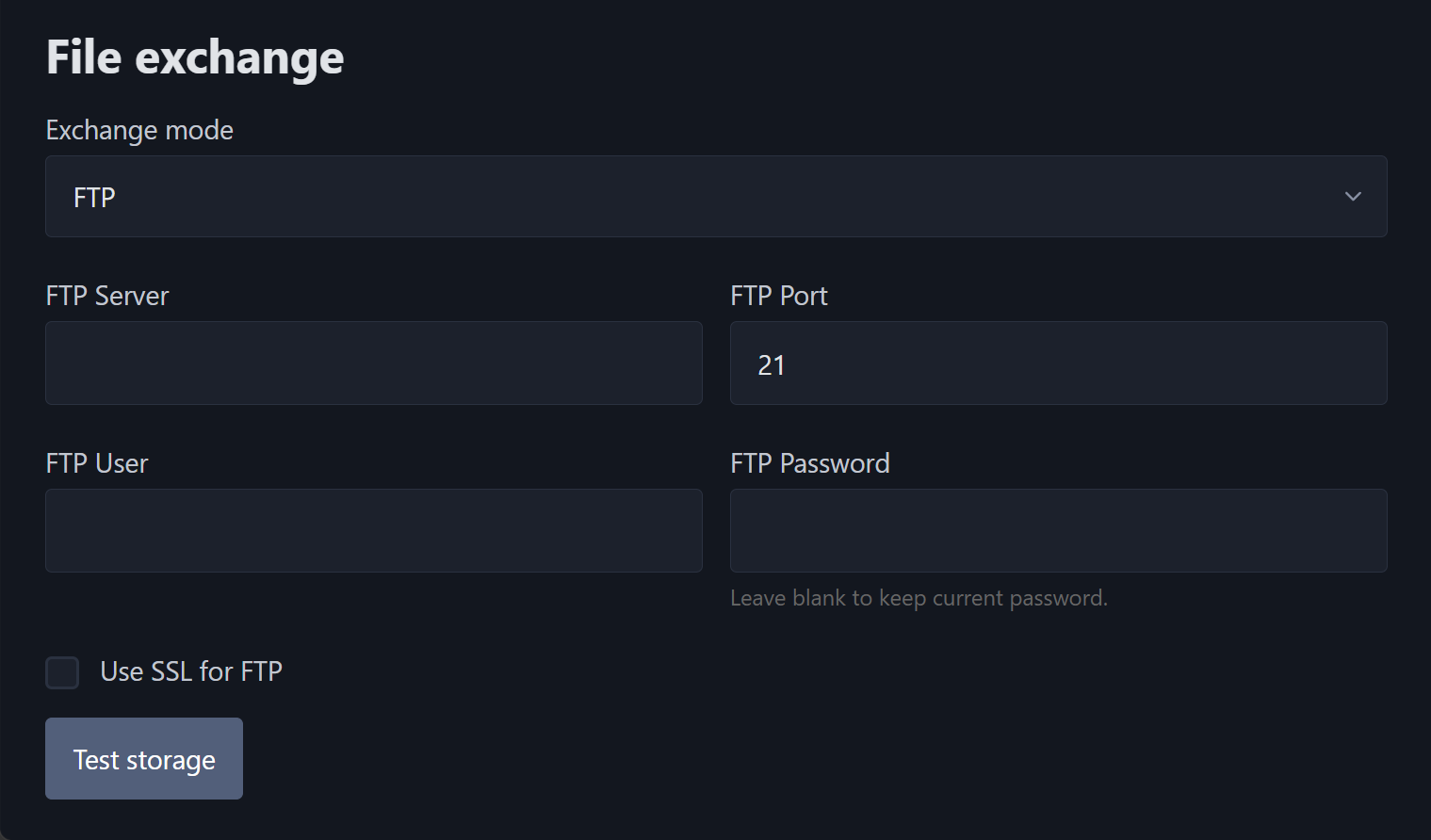
<strong>FTP root:</strong> For FTP, no separate exchange root folder is specified. The FTP user’s current working directory after connection is used as the root. The service creates section folders inside this directory.
The FTP user must have permissions to:
- connect to the FTP server;
- create folders, upload and download files;
- rename files;
- delete service test files and folders.
Storage check, saving settings, and restart
- Check storage — Checks the selected file exchange mode. For a local folder, it verifies that the root exists and that the service has permission to create a test folder and file. For FTP, it checks the connection, creates a test folder and file, and then deletes them.
- Save settings — Saves the current service settings.
- Restart application — Restarts the working part of the service to apply settings that cannot be applied dynamically.
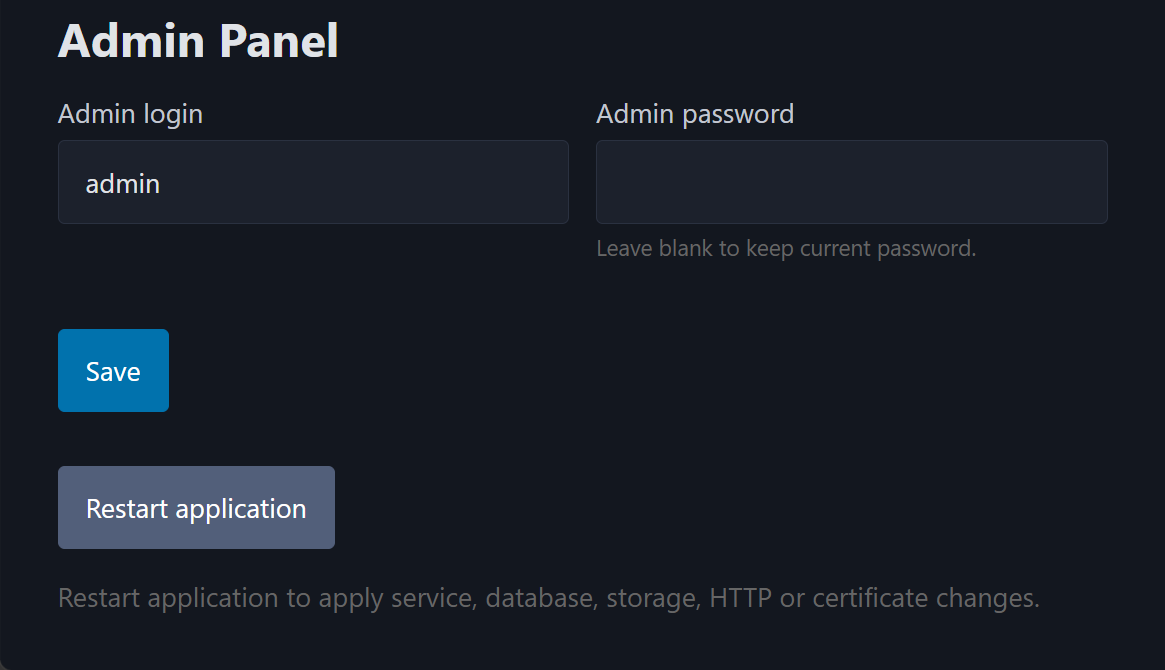
A restart is usually required after changing:
- HTTP port;
- database connection settings;
- import and export intervals and the number of import threads;
- file exchange mode and storage settings.