Ordizi Agent is designed so that sales representatives can work under any conditions. If you are in a basement or outside the city with no connection, simply create orders, visits, and payments as usual.
A constant internet connection is not required.
Documents are stored on the device and will be sent to the server during the next automatic synchronization when an internet connection becomes available.
What happens during synchronization
Data is exchanged in both directions. Ordizi Agent sends completed orders, visits, and payments to the server, and receives up-to-date working data from the server — customers, products, prices, stock levels, outstanding debt, settings, and other reference data.
During normal synchronization, the application first sends documents waiting to be transferred and then checks the server for updates. If the data is already up to date, there is no need to download it again.
How to start synchronization manually
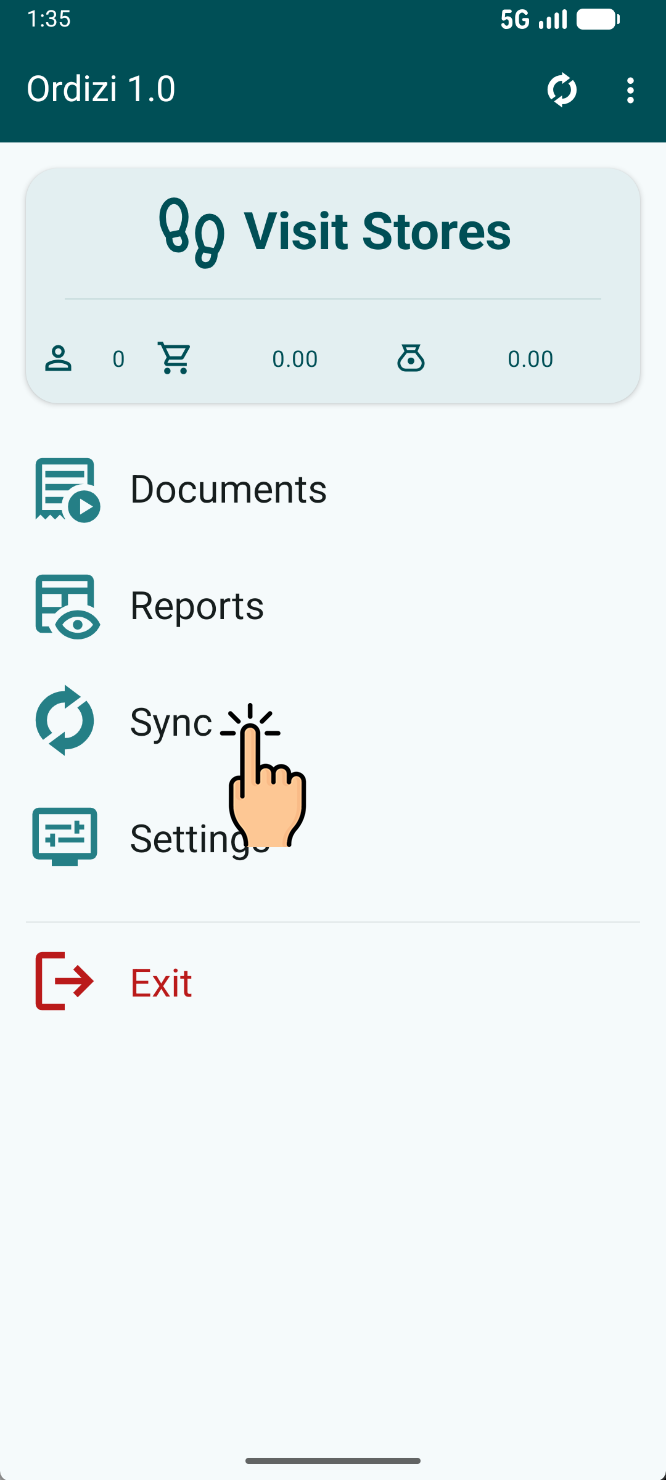
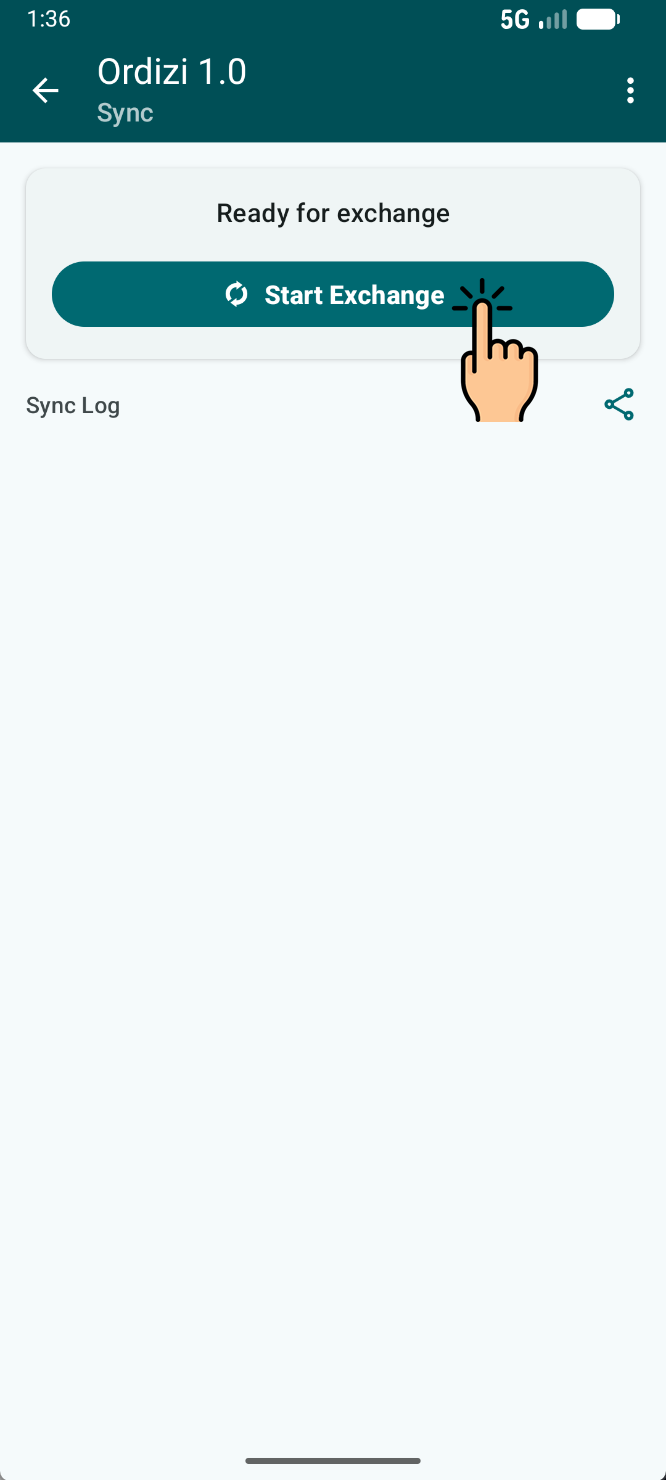
Normally, you do not need to tap anything — the application automatically sends prepared documents in the background and checks for updates to working data. However, if you need to immediately retrieve current prices and stock levels or check whether a document has been sent, you can start synchronization manually.
If the synchronization icon in the top bar is already spinning, synchronization is running automatically. Tap the icon to open the current synchronization screen.
Stopping synchronization is safe
Documents that have not yet been successfully acknowledged by the server are not deleted from the device and can be transferred later.
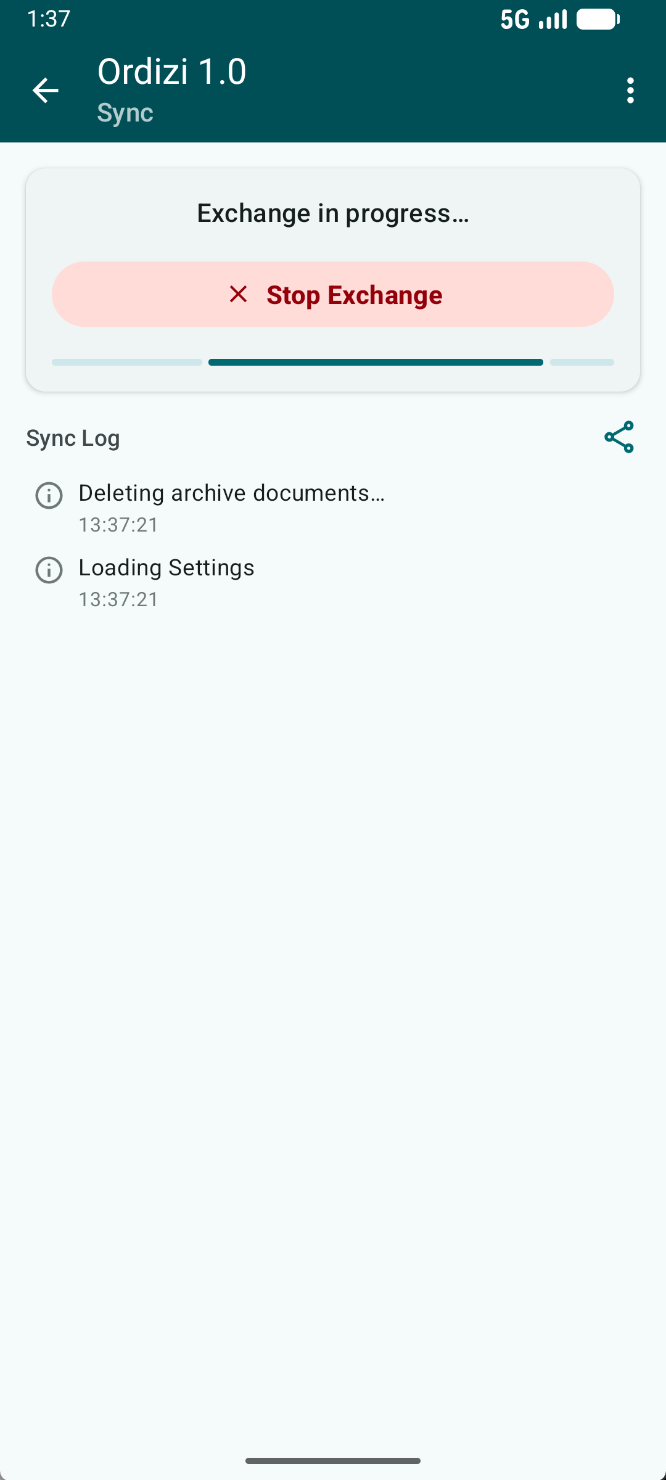
Sync log and trouble shooting
If the internet connection is lost or the server is temporarily unavailable, documents that were not successfully transferred will remain on the device and will be available for the next upload attempt.
A document is considered sent only after successful confirmation from the server.
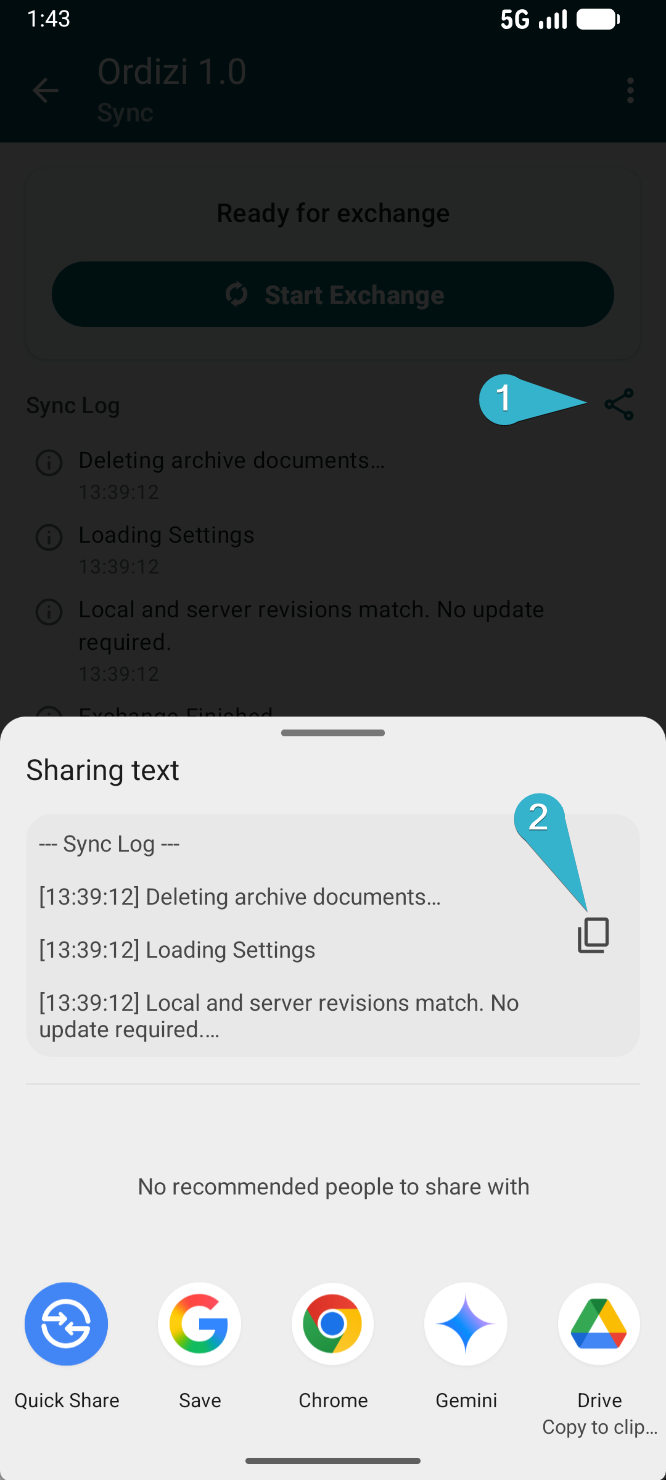
If the error persists, send the synchronization log to your technical specialist:
- On the synchronization screen, tap the “Share” icon next to the log.
- Tap “Copy to clipboard” — the log data will be copied as text.
- In the system window, select the messenger or application you want to use to send the text to your administrator or technical support specialist.
If synchronization ends with an error, do not delete or recreate the documents.
Additional synchronization options
For normal operation, standard synchronization is sufficient.
Additional modes are only needed in specific cases — for example, to resend documents or perform a full download of reference data.
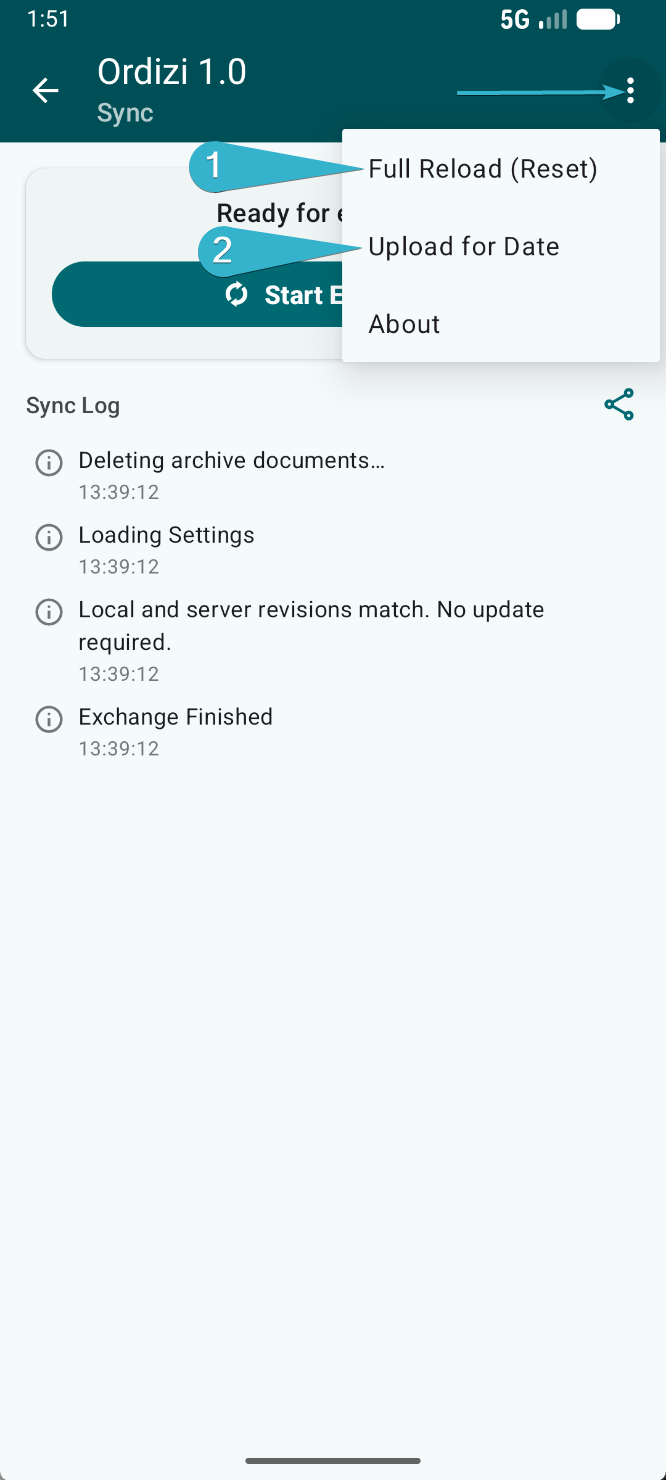
Full download (Reset) — downloads all reference data from the server again. Use this mode if standard synchronization did not resolve a data discrepancy or if your administrator recommended it.
Ordizi Agent will reset the local data freshness status and immediately start a full download of the reference data. After it completes successfully, subsequent synchronizations will again download only changes.
Synchronization by date — resends visits and orders for the selected day to the server. This mode is useful if documents for a specific date need to be transferred again or if your administrator recommended it.
After selecting “Synchronization by date”, choose the required day in the calendar. In this mode, the application sends documents for the selected date but does not download reference data.
Visit and GPS synchronization
During a visit, Ordizi Agent can record the sales representative’s location coordinates. Depending on your organization’s settings, these coordinates may be used to confirm a visit to a sales outlet and verify the distance to the customer.
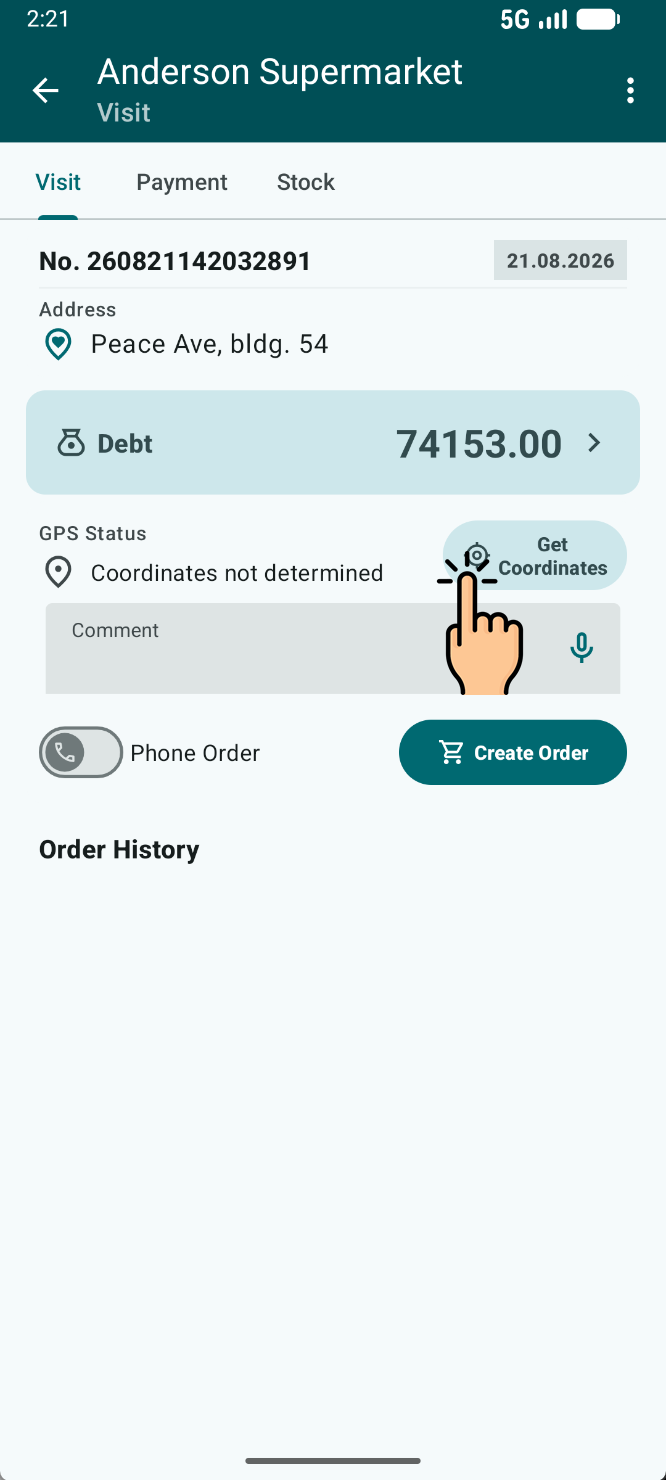
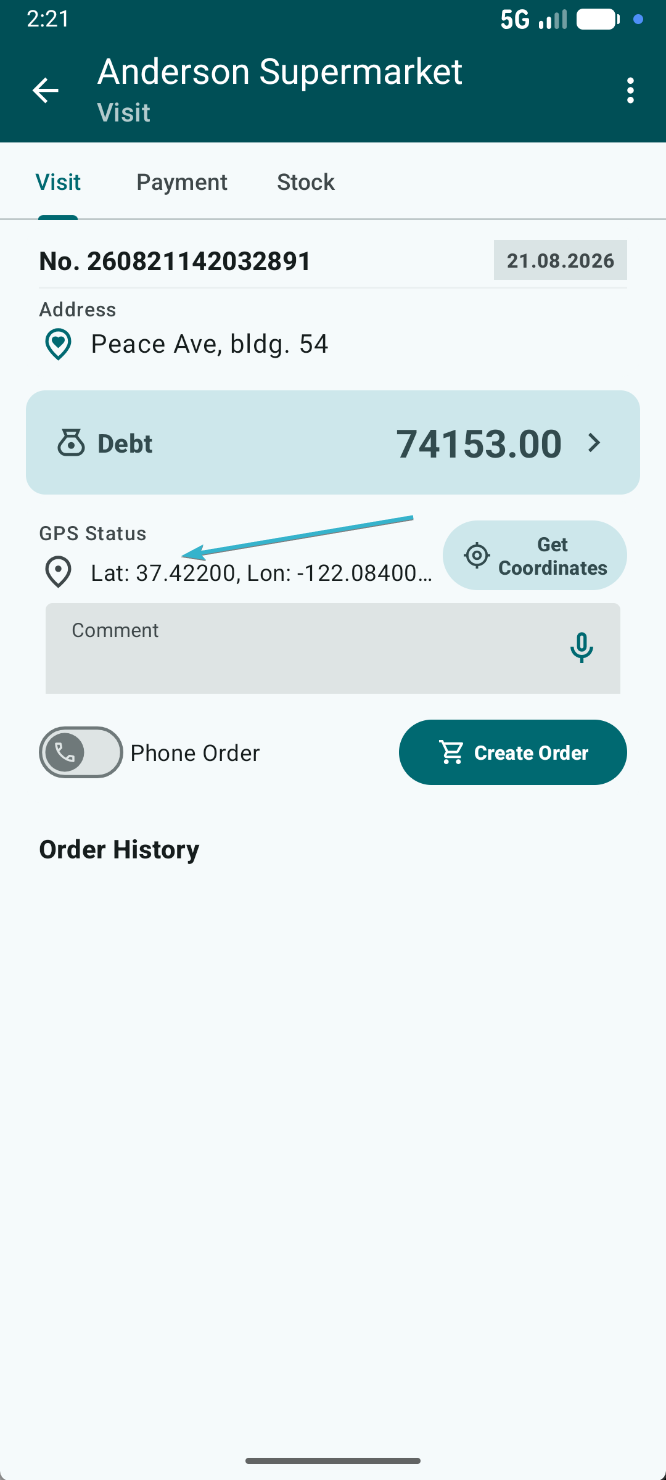
You do not need to wait for the coordinates to appear on the screen.
Simply complete the visit — the application will automatically obtain the GPS data in the background before sending the document.
Key points about synchronization
- No internet connection — keep working. Documents will remain on the device and can be sent later.
- Manual synchronization is usually not required. Ordizi Agent automatically sends prepared documents and checks for updates.
- A synchronization error does not mean the document is lost. Do not delete or recreate it just to try sending it again.
- If the error persists, send the synchronization log to your administrator. The log makes it easier to determine the cause of the problem.